Administrator’s Guide to Presbyters Training
WP Community Presbyters Core v1.2.0
A complete guide for Training Administrators managing the Minister Training System
Table of Contents
- Introduction
- Getting Started
- User Roles & Permissions
- Managing Courses
- Creating Lessons
- Building Assessments
- Monitoring Students
- Reports & Analytics
- Certificates
- Settings & Configuration
- Troubleshooting
Introduction
The Presbyters Training System is designed to help you manage minister training for your church community. This guide covers everything you need to know as a Training Administrator.
What You Can Do
As a Training Administrator, you can:
- Create and manage training courses across 5 volumes
- Build lessons with rich content
- Design assessments with multiple question types
- Monitor student progress and completion rates
- Generate reports and export data
- Issue and manage certificates
What’s Pre-Loaded
When the plugin is activated, it includes a complete curriculum:
- 64 Courses across all 5 Training Volumes
- 46+ Lessons with full content
- 10 Assessments with questions
- 40+ Quiz Questions ready for students
Getting Started
Accessing the Admin Panel
- Log in to WordPress with your administrator or Training Administrator account
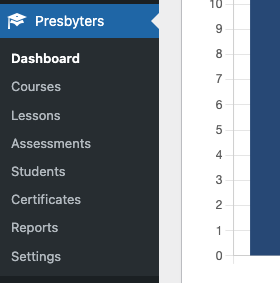
- Look for Presbyters Training in the left sidebar menu
- You’ll see these submenus:
- Dashboard – Overview statistics
- Courses – Manage courses
- Lessons – Create lesson content
- Assessments – Build quizzes and tests
- Students – View student progress
- Certificates – Manage certificates
- Reports – Analytics and exports
- Settings – Configure options
Quick Start Checklist
- ☐ Verify your account has the Training Administrator role
- ☐ Review the pre-loaded courses and lessons
- ☐ Create or verify the Courses page exists with the shortcode
- ☐ Assign the Presbyter Student role to students
- ☐ Review the Settings page for configuration options
User Roles & Permissions
Understanding Roles
The plugin uses two custom roles:
| Role | Who Gets It | What They Can Do |
|---|---|---|
| Training Administrator | Course managers, teachers | Full access to manage courses, lessons, assessments, and view reports |
| Presbyter Student | Students enrolled in training | Access courses, take lessons, complete assessments |
Assigning Roles
Important: WordPress only allows one role per user in the default user editor. To assign the Training Administrator or Presbyter Student role while preserving a user’s existing roles, use the WP Community Core plugin.
To assign roles (Training Administrator or Presbyter Student):
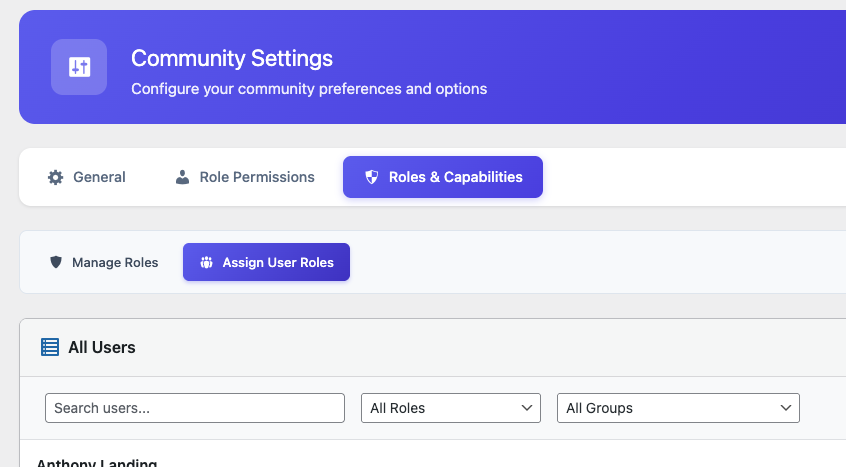
- Go to WP Community Core → Settings
- Click the Roles & Capabilities tab
- Click the Assign User Roles tab
- Find the user you want to modify
- Select the appropriate role:
- Training Administrator – For course managers and teachers
- Presbyter Student – For students enrolling in training
- Click Save Changes
Important Notes
- Training Administrators do NOT need to be WordPress Administrators
- Regular Subscribers cannot access training content
- You can have multiple Training Administrators
Managing Courses
The 5 Training Volumes
Courses are organized into volumes based on Elder Mark Everet Jones’ curriculum:
| Volume | Color | Content Focus |
|---|---|---|
| 1 | 🔵 Blue | Apostolic Doctrine & Theology |
| 2 | 🟢 Green | Christian Living & Ethics |
| 3 | 🟤 Brown | Religious Education & Sunday School |
| 4 | 🟣 Purple | Apostolic Emphasis Quarterly Themes |
| 5 | 🟠 Orange | Practical Ministry |
Viewing Courses
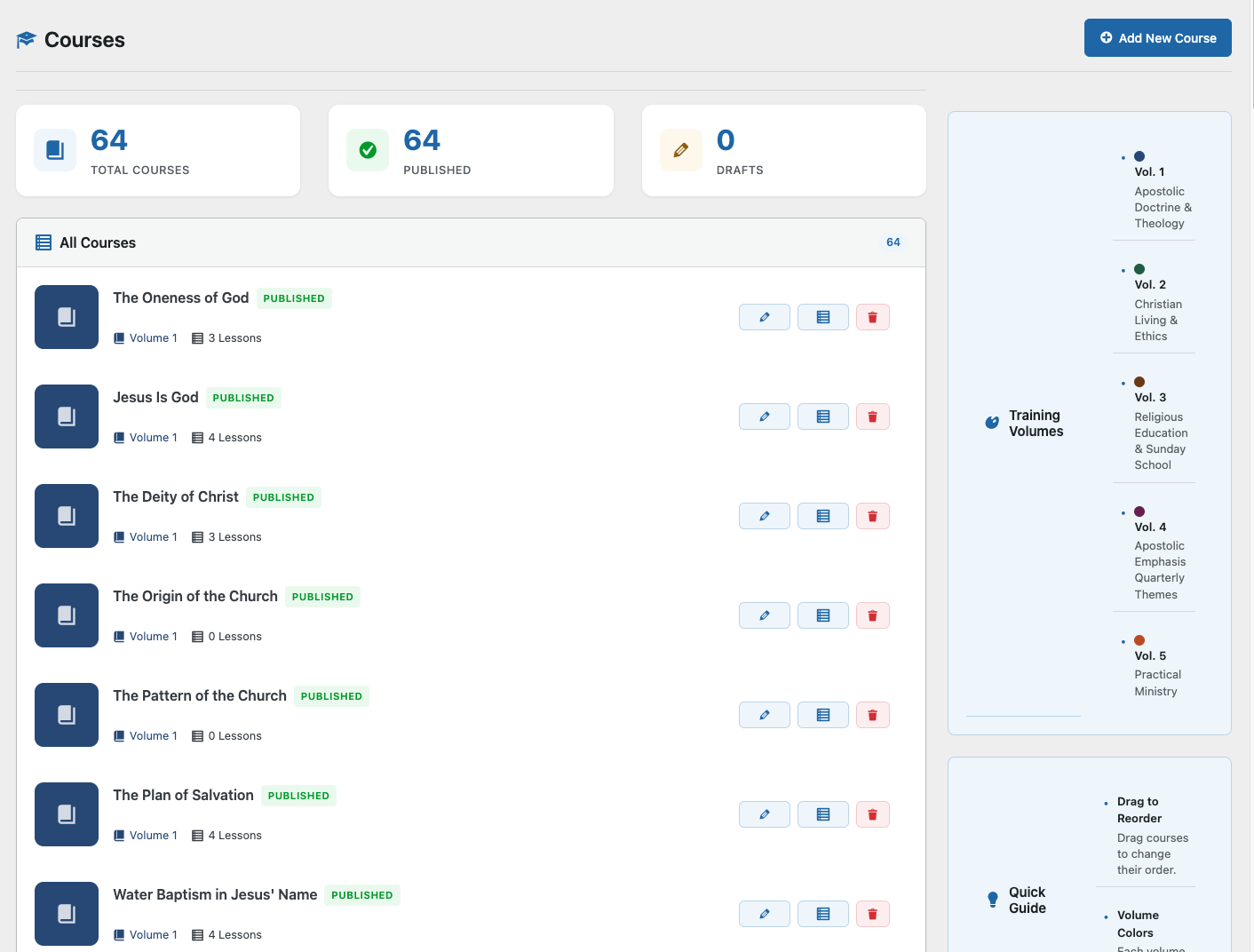
- Go to Presbyters Training → Courses
- See all courses listed with:
- Title and description
- Volume number and color
- Lesson count
- Student enrollment count
- Status (Published/Draft)
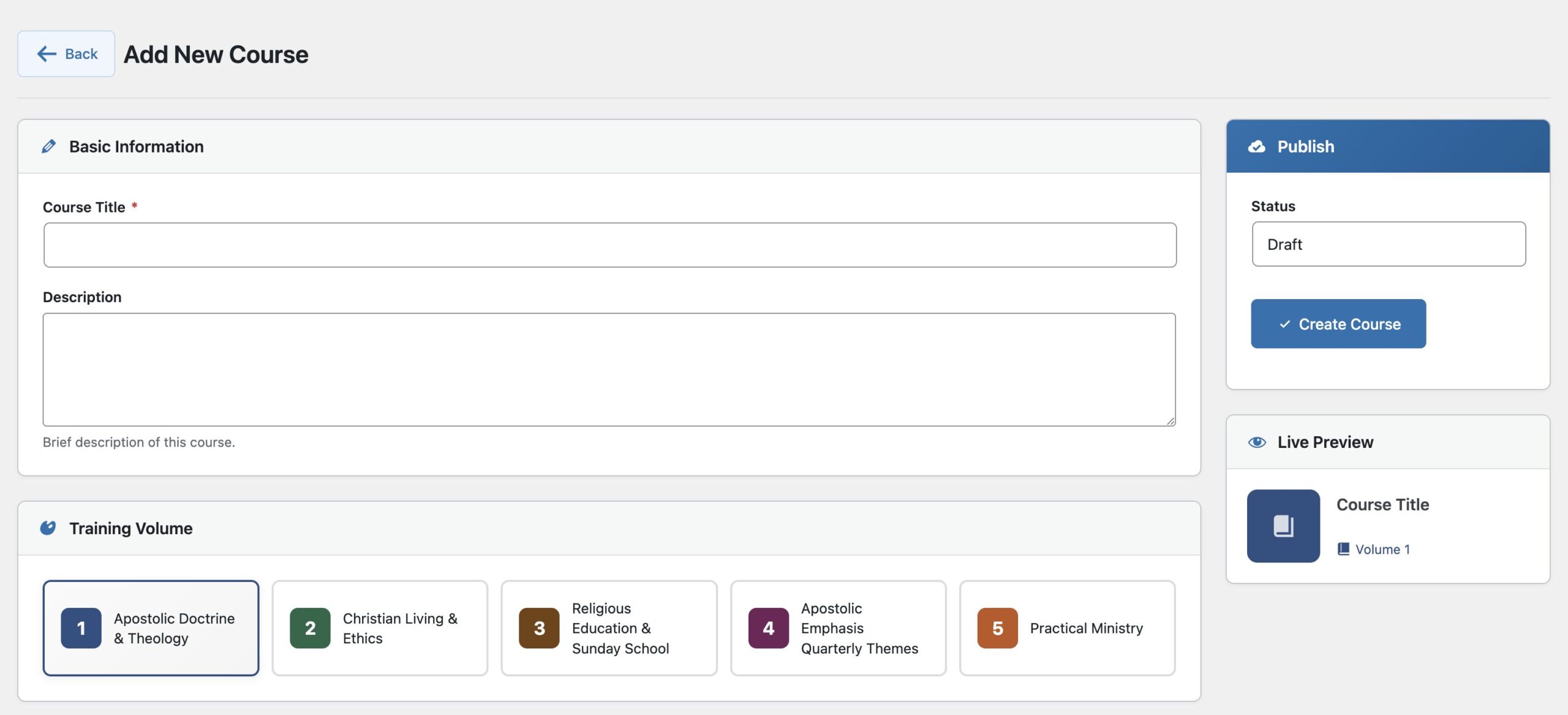
Creating a New Course
- Click Add New Course
- Fill in the form:
- Title: Course name (e.g., “Introduction to Apostolic Doctrine”)
- Description: What students will learn
- Volume: Select 1-5
- Color: Optional custom color (defaults to volume color)
- Order: Position within the volume
- Status: Draft (hidden) or Published (visible)
- Click Save Course
Editing Courses
- Find the course in the list
- Click the course title or the Edit button
- Make your changes
- Click Save Course
Course Best Practices
- Keep titles concise but descriptive
- Write descriptions that explain learning outcomes
- Group related courses in the same volume
- Use Draft status while building content
Creating Lessons
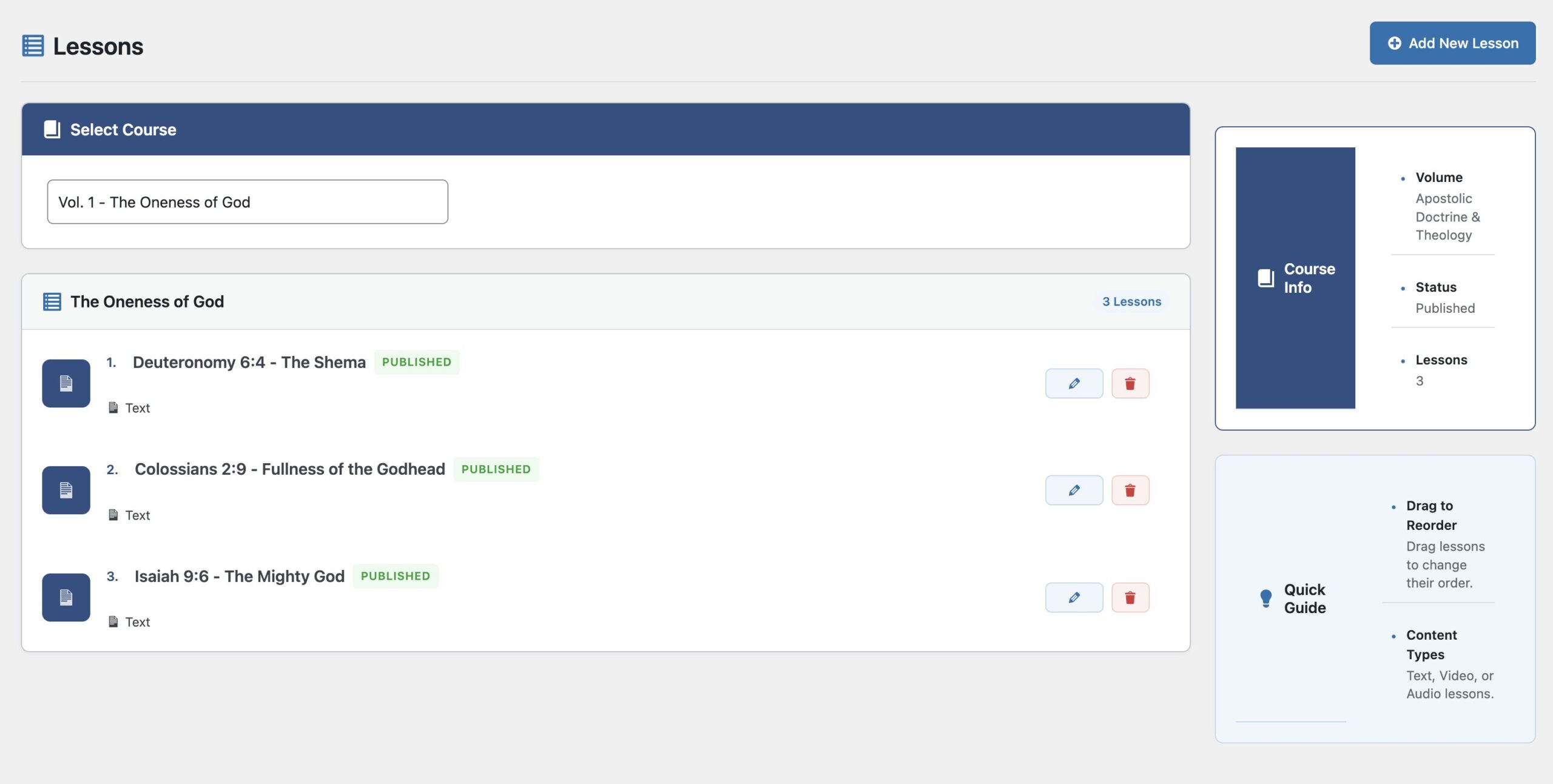
Adding Lessons to a Course
- Go to Presbyters Training → Lessons
- Select a course from the dropdown
- Click Add New Lesson
- Fill in:
- Title: Lesson name
- Content: Use the rich text editor
- Order: Position within the course
- Status: Draft or Published
- Click Save Lesson
Lesson Content Tips
You can include:
- Text with headings, paragraphs, lists
- Scripture references – Format as quotes
- Embedded videos – Paste YouTube/Vimeo URLs
- Images – Upload or link to media
- Key points – Use bold or highlight boxes
Reordering Lessons
- View the lesson list for a course
- Drag and drop lessons to reorder
- Changes save automatically
Lesson Status
- Draft: Only administrators can see it
- Published: Students can access it
Building Assessments
Assessment Types
| Type | Best For | Feedback |
|---|---|---|
| Practice Quiz | Learning reinforcement | Shows correct answer immediately after each question |
| Official Test | Graded evaluation | Shows all results only after submission |
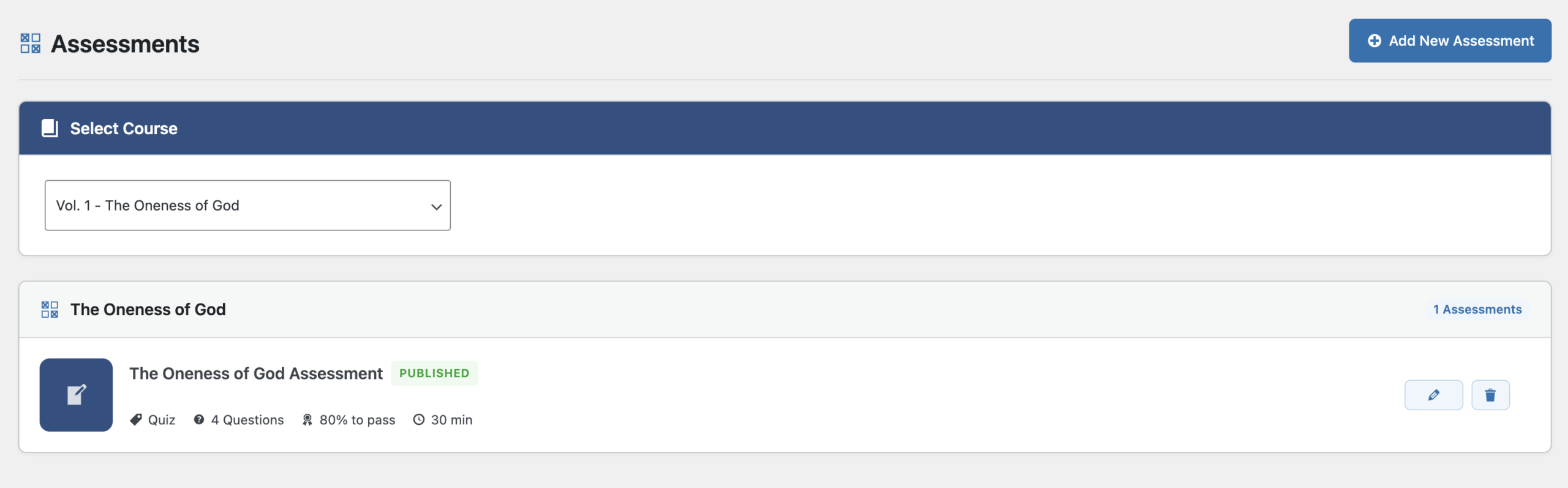
Creating an Assessment
- Go to Presbyters Training → Assessments
- Select a course
- Click Add New Assessment
- Configure settings:
- Title: Assessment name
- Type: Practice or Official
- Time Limit: Minutes (0 = unlimited)
- Passing Score: Percentage needed to pass (e.g., 70)
- Click Save Assessment
Adding Questions
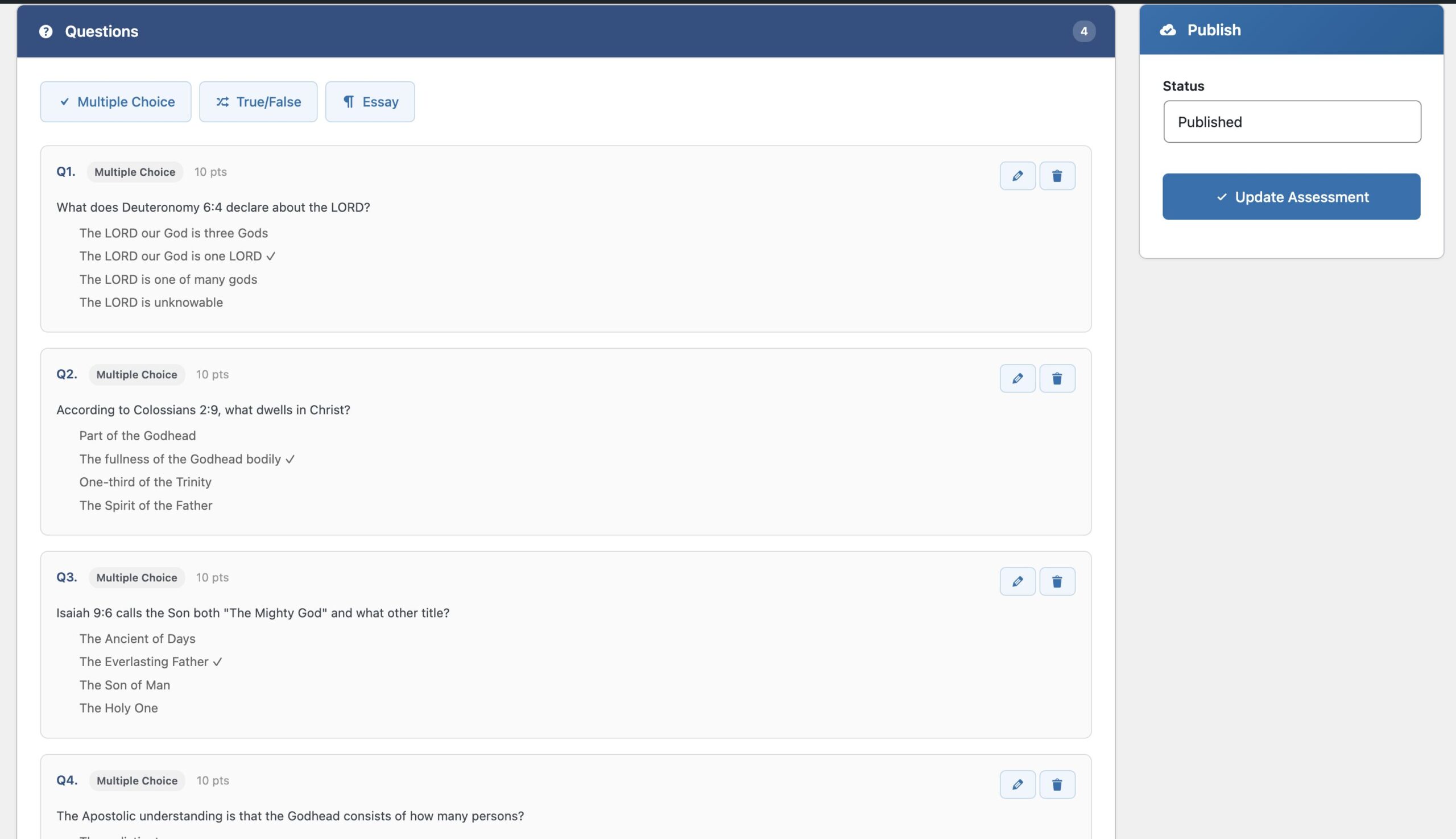
After creating the assessment:
- Click Manage Questions
- Click Add Question
- Choose question type:
Multiple Choice:
- Enter the question text
- Add 2-5 answer options
- Select the correct answer
- Set point value
True/False:
- Enter a statement
- Select True or False as correct
- Set point value
Essay:
- Enter the question prompt
- Essays require manual grading
- Click Save Question
- Repeat for additional questions
Question Tips
- Write clear, unambiguous questions
- Avoid “trick” questions
- Make wrong answers plausible but clearly incorrect
- Use a mix of difficulty levels
- Test the assessment yourself before publishing
Monitoring Students
Students Dashboard
- Go to Presbyters Training → Students
- View the student list with:
- Name and email
- Courses started
- Courses completed
- Average progress
- Last activity date

Filtering and Searching
- Use the search box to find specific students
- Sort by clicking column headers
- Filter by course or completion status
Exporting Student Data
- Click Export CSV
- Download opens automatically
- Open in Excel or Google Sheets for analysis
Understanding Progress Metrics
- Courses Started: Student has viewed at least one lesson
- Courses Completed: 100% of lessons marked complete
- Average Progress: Mean completion percentage across all started courses
- Last Activity: Most recent lesson completion or assessment attempt
Reports & Analytics
Accessing Reports
- Go to Presbyters Training → Reports
- Choose a report tab:
- Overview – High-level statistics
- Courses – Course-specific analytics
- Assessments – Quiz and test results
Overview Report
Shows at-a-glance metrics:
- Total courses, lessons, students
- Completion rates
- Enrollment trends over time
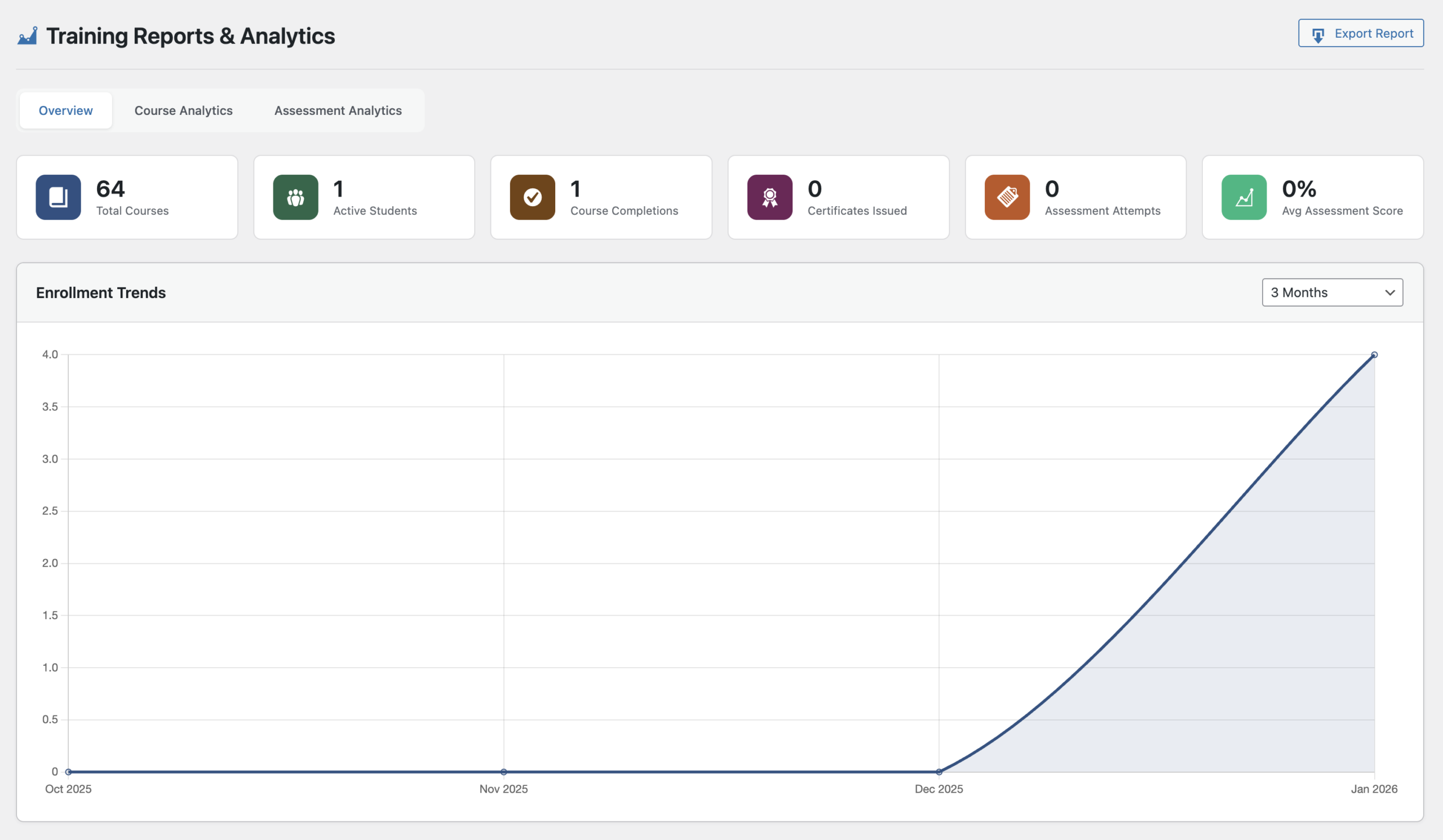
Enrollment Trends
The enrollment chart shows new enrollments over time.
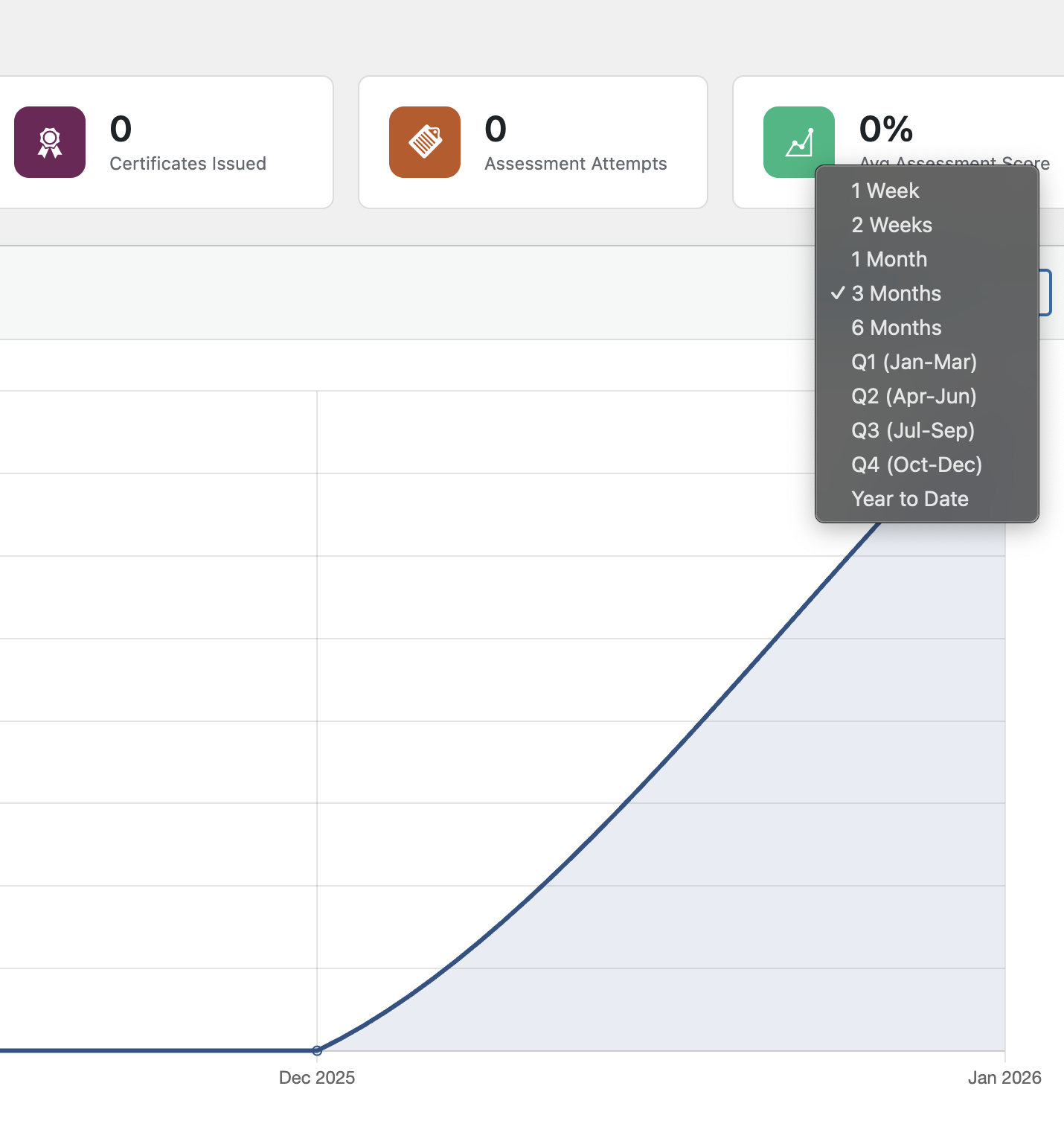
Changing the Time Range:
- Find the time range dropdown
- Select from:
- Last Week
- Last 2 Weeks
- Last Month
- Last 3 Months
- Last 6 Months
- Q1, Q2, Q3, Q4 (quarterly)
- Year to Date
Course Analytics
- Enrollments by course
- Average progress by course
- Completion rates
- Volume distribution pie chart
Assessment Analytics
- Pass/fail rates
- Score distributions
- Lowest performing assessments (may need revision)
Exporting Reports
Click Export Report to download CSV files for:
- Student progress data
- Course enrollment data
- Assessment results
Certificates
How Certificates Work
Students earn certificates when they:
- Complete 100% of a course’s lessons
- Pass the course’s official assessment
Viewing Issued Certificates
- Go to Presbyters Training → Certificates
- See all issued certificates with:
- Student name
- Course name
- Issue date
- Certificate number
- Verification status
Certificate Verification
Each certificate includes:
- Unique certificate number
- QR code for scanning
- Verification URL
Anyone can verify a certificate at your verification page.
Settings & Configuration
Accessing Settings
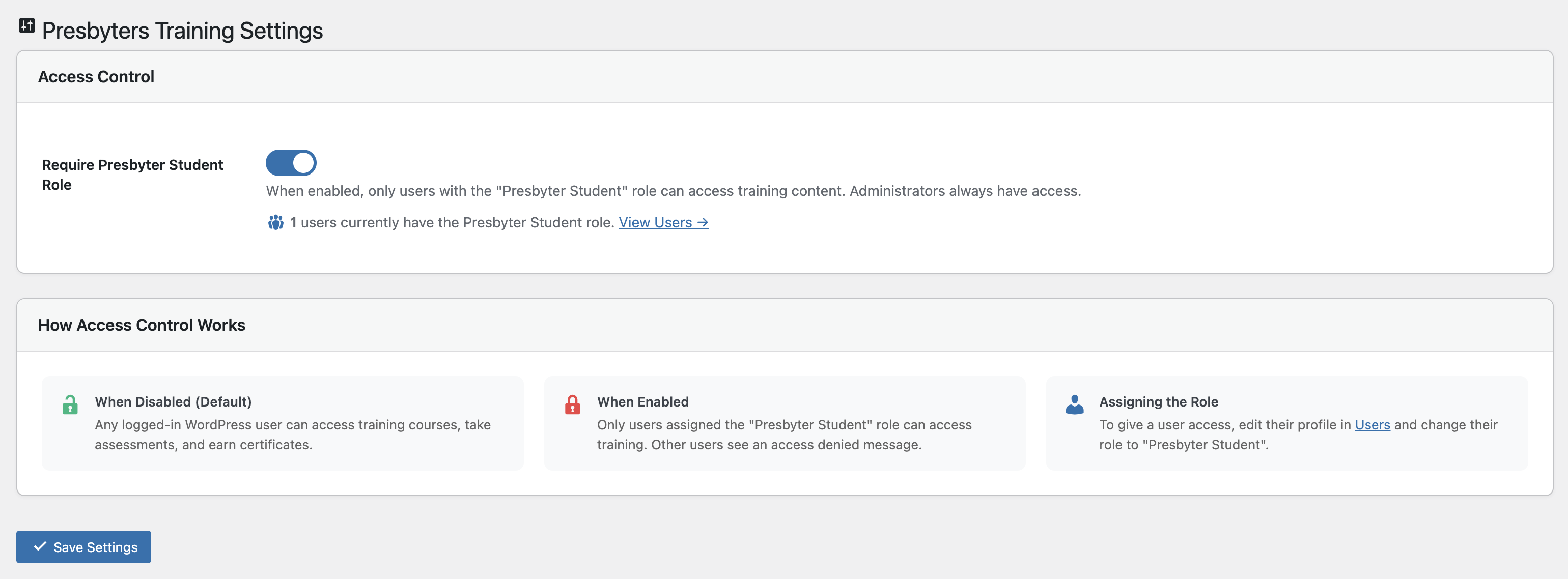
Go to Presbyters Training → Settings
Available Options
- Role Restriction: Require Presbyter Student role for access
- Default Passing Score: Set the default percentage for new assessments
- Points Configuration: Adjust points awarded for activities
- Certificate Settings: Customize certificate appearance
- Email Notifications: Enable/disable progress emails
Troubleshooting
Common Issues
Students can’t see courses
- Verify the student has the “Presbyter Student” role
- Check that courses are set to “Published”
- Ensure the Courses page has the
The Oneness of God
Understanding the unity of the Godhead. Deuteronomy 6:4 declares "The LORD is one." The Godhead…
StartVol. 1Jesus Is God
The clearest statement of Apostolic doctrine: Jesus is God. Scripture affirms this: Emmanuel means "God…
StartVol. 1The Deity of Christ
Jesus is not part of God — He IS the one true God. Isaiah 9:6…
StartVol. 1The Origin of the Church
Understanding the birth and foundation of the Apostolic church. The church was born on the…
StartVol. 1The Pattern of the Church
The Book of Acts reveals a universal pattern for all believers: repentance, water baptism in…
StartVol. 1The Plan of Salvation
God's plan of salvation is revealed in Scripture: Repentance, Baptism in Jesus' Name, and receiving…
StartVol. 1Water Baptism in Jesus' Name
Every baptism in Acts was performed in the name of Jesus Christ, for the remission…
StartVol. 1Spirit Baptism & Tongues
Acts reveals a consistent pattern: Acts 2 (tongues), Acts 10 (tongues), Acts 19 (tongues). Tongues…
StartVol. 1Equivalent Privilege & Experience
Jews, Samaritans, Gentiles, disciples of John — all received salvation the same way. There is…
StartVol. 1The Believer's Two Natures
Understanding the conflict between the flesh and the Spirit. The old man (sarx) wars against…
StartVol. 1Walking in the Spirit
How to overcome the flesh and live victoriously. "Walk in the Spirit, and ye shall…
StartVol. 1The Logic of Apostolic Doctrine
Truth never contradicts itself. The law of non-contradiction applies to doctrine. Sound theology is consistent,…
StartVol. 1Answering Doctrinal Objections
How to respond to common objections: "Do all speak with tongues?" (1 Cor 12:30 refers…
StartVol. 2God's View of Marriage
Marriage is a divine institution established in Eden. It is covenantal, lifelong, exclusive, sacred, and…
StartVol. 2The Permanence of the Marriage Vow
Breaking a vow is sin. Marriage vows are made to God, not merely to each…
StartVol. 2Jewish Espousal & Matthew 5:32
Understanding Jesus' teaching on divorce requires understanding Jewish culture. "Saving for the cause of fornication"…
StartVol. 2Unscriptural Marriages
Scripture identifies marriages that are not lawful in God's sight. Civil legality does not equal…
StartVol. 2Joseph's Contribution to His Suffering
Joseph was godly but not always wise. His lack of discretion contributed to his suffering.…
StartVol. 2Reading Non-Verbal Cues
Wisdom requires awareness, discernment, sensitivity, and discretion. People communicate through facial expressions, tone, posture, and…
StartVol. 2God Redeems Our Mistakes
Joseph's story proves: we sometimes contribute to our own trouble, but God can redeem even…
StartVol. 2Joseph as the Model Servant
Before Joseph ruled, he served — in Potiphar's house, in prison, under unjust conditions. He…
StartVol. 2Serving "As Unto Christ"
Ephesians 6:5-7 commands believers to serve as unto Christ, as servants of Christ, as to…
StartVol. 2God Rewards Faithful Service
"Whatever good anyone does, the same shall he receive of the Lord" (Ephesians 6:8). God…
StartVol. 2God Uses Unwanted Tasks
Joseph did not want to be a slave or prisoner. Yet those experiences positioned him…
StartVol. 2The Logic of Holiness
Christian ethics is grounded in Scripture, logic, consistency, and truth. A vow cannot be both…
StartVol. 2Words, Tone & Body Language
When words and tone contradict, people believe tone. When tone and body language contradict, people…
StartVol. 2Wisdom in Relationships
Not everyone can handle your dreams. Not every truth must be shared with every person.…
StartVol. 3Why Sunday School Still Matters
Sunday School fulfills biblical functions every generation needs: religious education, evangelism, discipleship, community, accountability, and…
StartVol. 3Religious Education: Heart of Sunday School
Sunday School is the church's primary vehicle for graded religious education. "My people are destroyed…
StartVol. 3Supplementing Parental Teaching
Not all parents are equipped to teach Scripture effectively. Sunday School supplements parental instruction, supports…
StartVol. 3Preventing Future Sorrow
Many sorrows arise from decisions made in ignorance. Sunday School helps prevent sinful relationships, unbiblical…
StartVol. 3Counteracting Cultural Deception
Modern culture promotes immorality, rebellion, and unbiblical values. Sunday School counters false teaching and equips…
StartVol. 3Graded Worship: Teaching Children
Most worship services are designed for adults. Sunday School teaches children that God expects them…
StartVol. 3Worship as Formation
Children often sing songs they don't understand. Sunday School explains lyrics, teaches biblical meaning, and…
StartVol. 3Sunday School as Evangelistic Tool
Many adults are saved because their children were invited to Sunday School. Parents came to…
StartVol. 3Evangelism Through Children
Children invite friends, bring families, soften hearts, and open doors. Sunday School is often the…
StartVol. 3Building Friendships of Like Persuasion
Sunday School provides godly friendships, positive peer influence, encouragement to live right, and a sense…
StartVol. 3Personal Development Through Participation
Sunday School provides opportunities for teaching, reading, public speaking, leadership, and spiritual growth. Skills become…
StartVol. 3Teaching Opportunities for Students
Allowing students to teach builds confidence, develops communication skills, strengthens understanding, and prepares future leaders.
StartVol. 3Understanding Fellow Members
Sunday School is one of few settings where members can express knowledge, share viewpoints, ask…
StartVol. 3How to Study Scripture Effectively
Students must learn to use concordances, compare translations, trace themes, build doctrinal arguments, and apply…
StartVol. 3Writing Doctrinal Papers
Training in APA style, block quotations, headings, avoiding plagiarism, and proper referencing prepares students for…
StartVol. 4Q1: Salvation for All
The Book of Acts reveals a universal pattern: Jews, Samaritans, Gentiles, disciples of John —…
StartVol. 4Q1: Water Baptism Pattern
Every baptism in Acts was performed in the name of Jesus Christ, for the remission…
StartVol. 4Q1: Spirit Baptism Evidence
Acts 2, Acts 10, Acts 19 — tongues. The initial evidence is consistent throughout Scripture.…
StartVol. 4Q2: Jesus Is God
The clearest Apostolic statement. Emmanuel (God with us), The Mighty God, I AM, I and…
StartVol. 4Q2: One Person in the Godhead
Deuteronomy 6:4 — "The LORD is one." Isaiah 9:6 — The Son is The Mighty…
StartVol. 4Q2: Jesus Baptizes With the Spirit
John baptized with water; Jesus baptizes with the Holy Spirit. Spirit baptism places believers into…
StartVol. 4Q3: Why Sunday School Matters
Sunday School fulfills biblical functions: religious education, evangelism, discipleship, community formation, talent development. Essential for…
StartVol. 4Q3: Education & Graded Worship
Structured teaching, age-appropriate worship, doctrinal grounding, biblical literacy. Children learn Scripture, worship, prayer, and holiness.
StartVol. 4Q3: Evangelism & Community
Many families come to Christ through children in Sunday School. It builds godly friendships, develops…
StartVol. 4Q4: God's Purpose and Zechariah
Romans 8:28 — "His purpose" applies to Zechariah. God purposed John the Baptist's birth. Zechariah…
StartVol. 4Q4: Joseph's Story
Joseph contributed to his suffering through lack of discretion, yet God redeemed his mistakes and…
StartVol. 4Q4: God Redeems Our Unwise Moments
We sometimes contribute to our own trouble. God's purpose is not canceled by our missteps.…
StartVol. 5Introduction to Altar Ministry
The Region XII Altar Work Ministry supports spiritual needs during altar calls, prayer services, and…
StartVol. 5Team Structure & Ribbon System
Color-coded ribbon system for altar teams: Purple (Prayer Line), Red (Tarry), Yellow (Encouragement), Blue (Baptism),…
StartVol. 5Prayer Line Team (Purple Ribbon)
Positioned at front of altar and ends of platform. Responsibilities: maintain order, direct souls to…
StartVol. 5Tarry Team (Red Ribbon)
Positioned near praying ministers and Prayer Room. Stay with souls seeking Holy Ghost at all…
StartVol. 5Encouragement Team (Yellow Ribbon)
Explain God's plan of salvation, encourage repentance and faith, tarry when needed, direct to Baptism…
StartVol. 5Baptism Team (Blue Ribbon)
Positioned at baptism pool. Escort souls to Baptism Committee, assist with garments, stay with candidate…
StartVol. 5Record Keeping Team (Green Ribbon)
Collect all cards from every team. Ensure supplies stocked. Maintain accurate records. Prepare daily and…
StartVol. 5Altar Work Flow
Complete workflow: Soul enters prayer line → Prayer Line Team directs → Minister prays →…
StartVol. 5Daily Prayer Room Operations
Prayer Room staffed 10 AM to 3 PM daily. Purpose: continued tarrying, private prayer, deliverance…
StartVol. 5Ethics & Spiritual Readiness
All workers must maintain confidentiality, operate in humility, follow ministerial direction, avoid personal prophecy, avoid…
Start - Clear any caching plugins
Assessment scores are wrong
- Verify the correct answer is properly selected for each question
- Check that questions have the right point values
- Test the assessment yourself
Progress not saving
- Student must be logged in
- Check for JavaScript errors in browser console
- Verify AJAX is not blocked by security plugins
Reports showing no data
- Ensure students have actually started courses
- Check the date range selected
- Verify database tables exist (deactivate/reactivate plugin if needed)
Getting Help
- Check the WordPress debug log at
wp-content/debug.log - Review browser console for JavaScript errors
- Contact your WordPress administrator
Quick Reference
Shortcodes for Pages
| Shortcode | Purpose |
|---|---|
|
Course catalog (main page) |
|
Student dashboard |
|
Certificate verification |
|
Student leaderboard |
|
Badge collection |
For student instructions, see the Student Guide.🔗
Last updated: January 2026 | Version 1.2.0